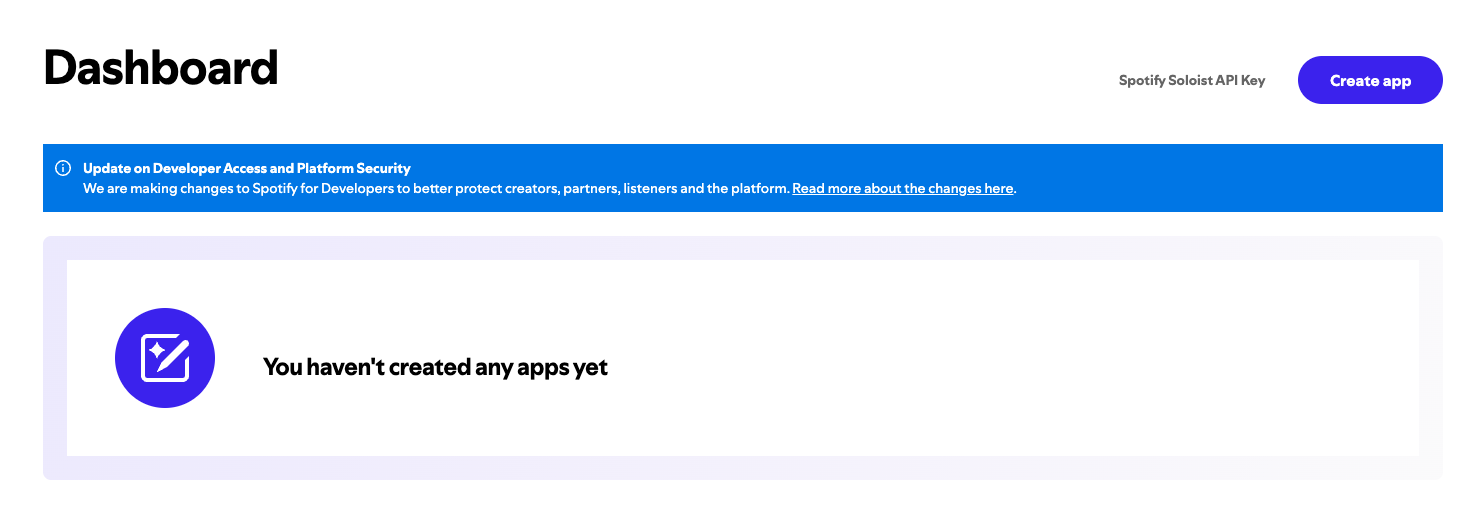
Open the Spotify Developer Dashboard. Sign in with your Spotify Premium account. If this is your first app, you’ll see “You haven’t created any apps yet.” Look for the purple Create app button in the upper right. Open the dashboard.
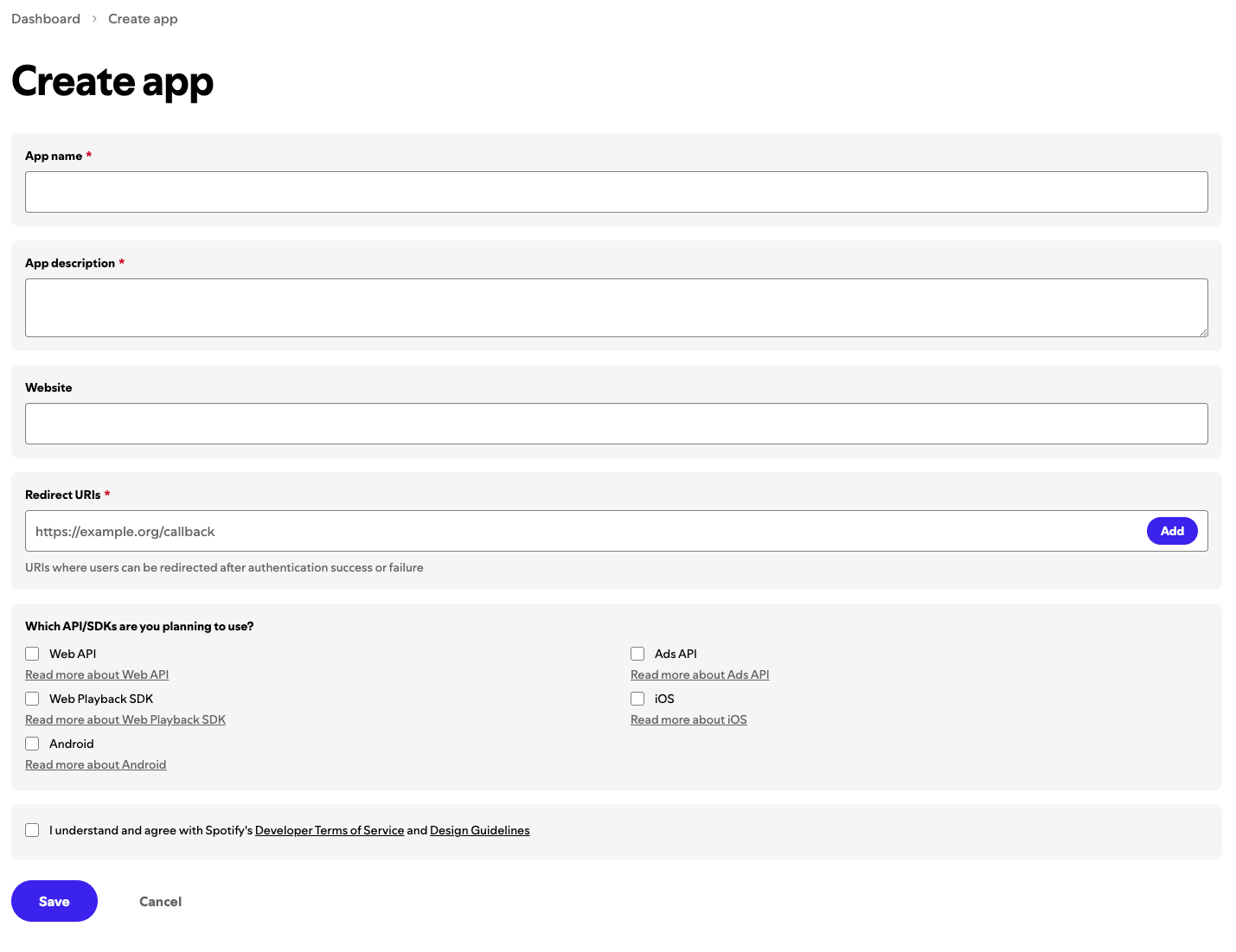
Click Create app. Spotify opens the blank form shown below. Scroll down to see the API choices and the Save button.
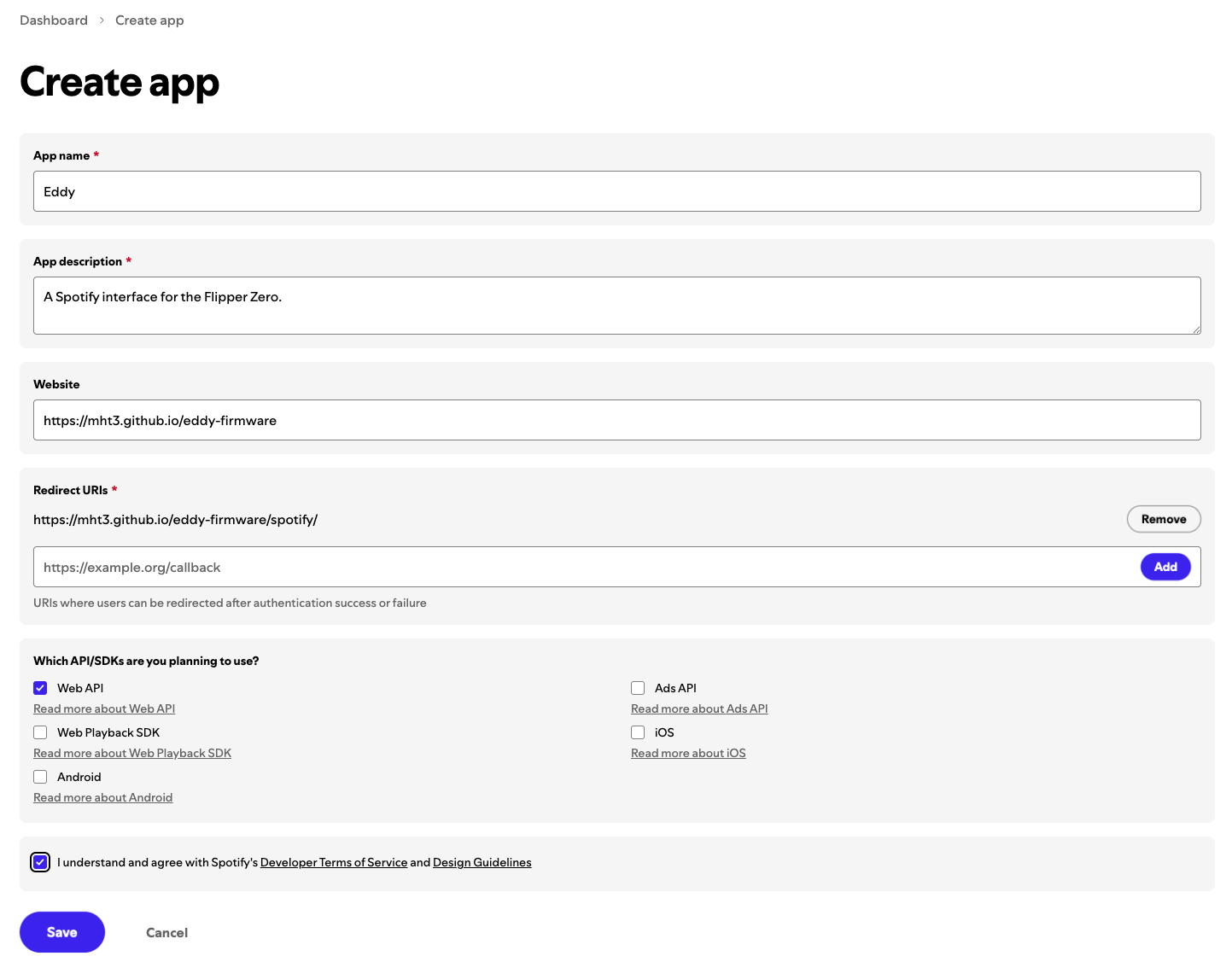
Fill out the form. Use these values, working from top to bottom.
App name
Eddy
App description
A Spotify interface for the Flipper Zero.
Website
https://mht3.github.io/eddy-firmware
Redirect URIs
Paste https://mht3.github.io/eddy-firmware/spotify/, including the final slash. Click Add and check that the address appears in the list.
Which API/SDKs are you planning to use?
Select Web API.
Check your completed form. Read Spotify’s Developer Terms of Service and Design Guidelines. If you accept them, check the agreement box.
Click Save at the bottom left.
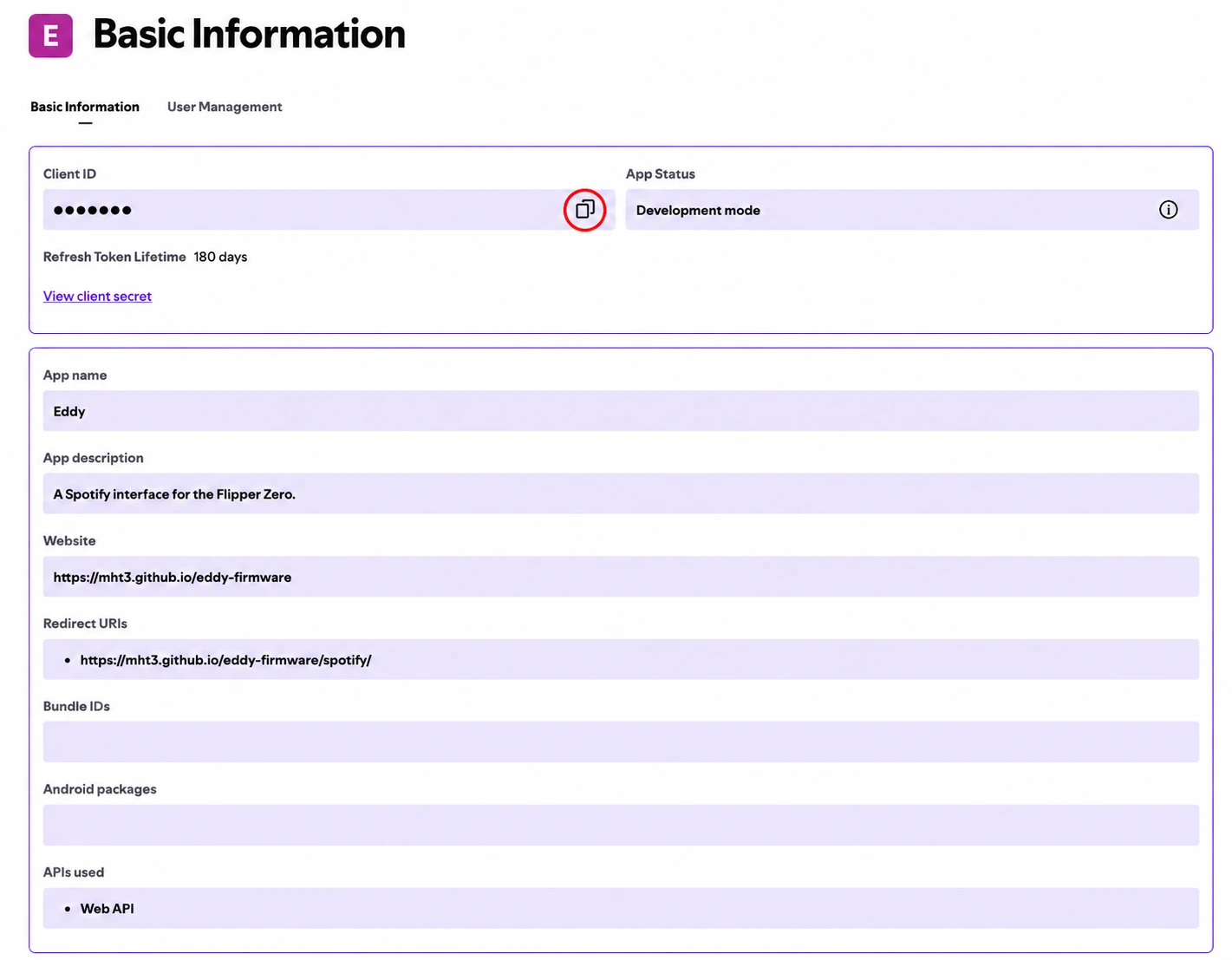
Copy your Client ID. Open your Eddy app in the Spotify dashboard and go to Settings → Basic Information. Click the two overlapping squares at the right end of the Client ID field, circled below. Keep the ID handy for the iPhone step. Leave the Client Secret hidden.
Install Spotify on your Flipper
Plug the Flipper into your computer with a USB data cable. In the Eddy installer, include Spotify under Extras.
Select Connect Flipper Zero, choose your device, and follow the installer until the Flipper restarts.
Keep Spotify open on the Flipper. In the Eddy iPhone app, tap Connect device, choose your Flipper’s name, and accept the Bluetooth pairing prompt if it appears.
On Log in to Spotify, paste the Client ID you copied into Spotify Client ID. Tap Log in to Spotify, approve access on Spotify’s sign-in page, and return to Eddy. If you’ve finished onboarding, you can find sign-in under Devices → Spotify.
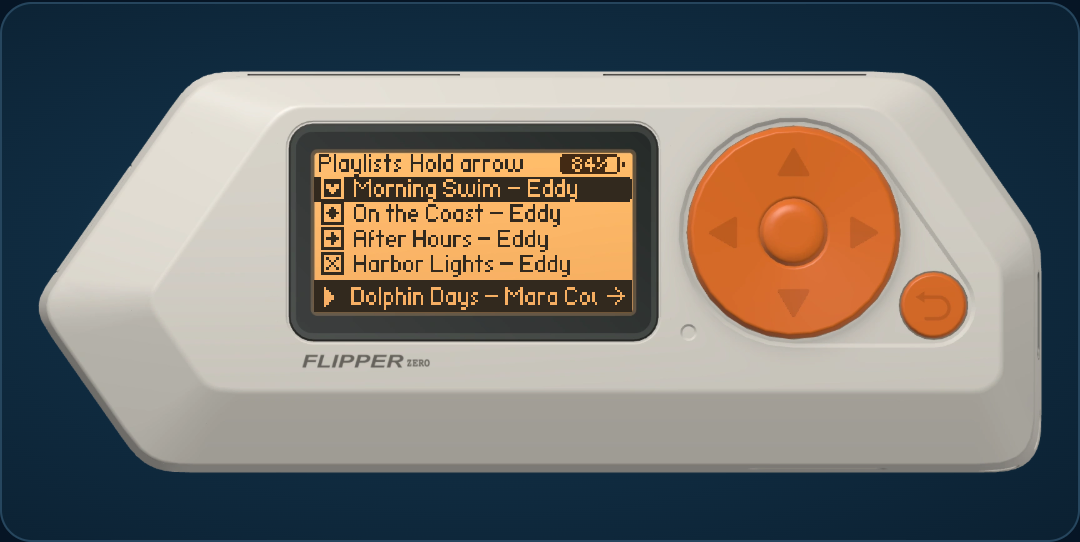
Follow the prompts on the Flipper. Once your library appears, open Playlists to pick a song. If Spotify asks for an active player, start a song in Spotify on your iPhone and try again.
For a shortcut, highlight Liked Songs or a playlist and hold an unused arrow. Hold that arrow again to play it. A Liked Songs shortcut starts up to 50 saved tracks.
 Eddy